
Client
Arjan Technologies
Industry
Marketing Automation
Country
Kingdom of Saudi Arabia
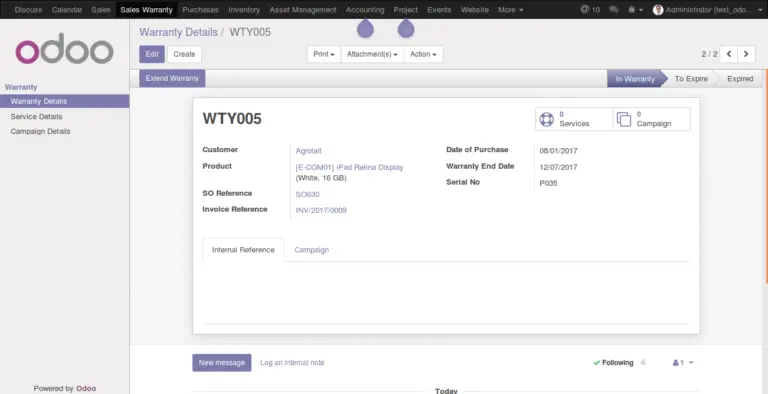
“To Expire” and “Expired” are the two other stages of the warranty record. One month before the warranty end date, the record becomes “To Expire”.
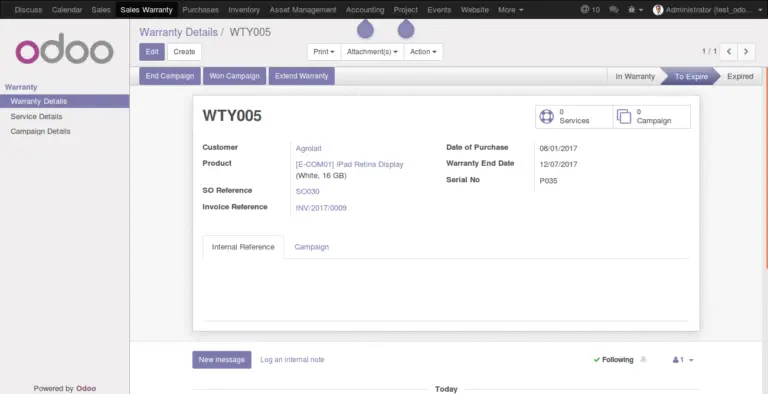
On the warranty end date, it becomes “Expired”. The automatic stage transition of the record is managed with the help of cron job (Scheduler).
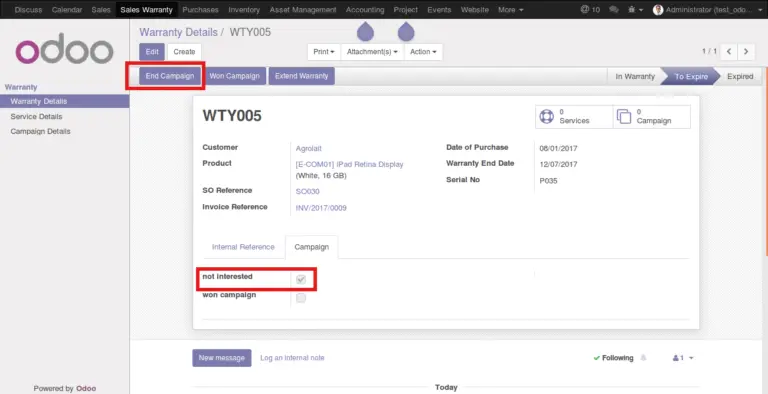
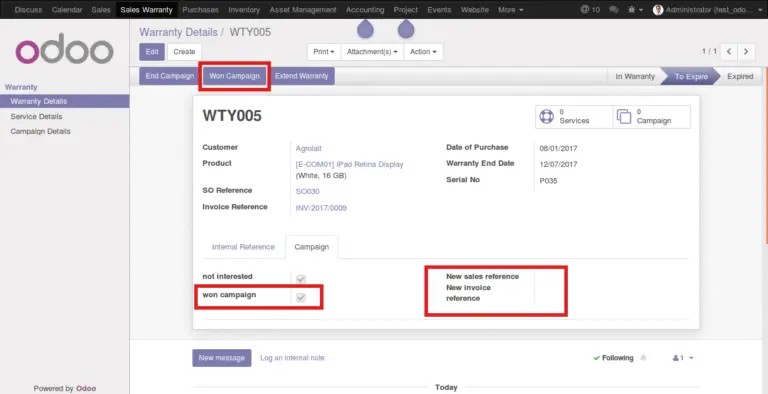
The “To Expire” stage of warranty records are critical for sales team. They have to campaign respective customers and try to extend the warranty of the products by making additional payment. The system helps to manage such campaign more efficiently by allowing the salesman to mark the outcome of the campaign. If the customer is not at all interested in extending the service, the salesman can use the button “End Campaign” which in turn flags the customer as “Not Interested”. This will increase efficiency of sales team by filtering out the leads that won’t work out.
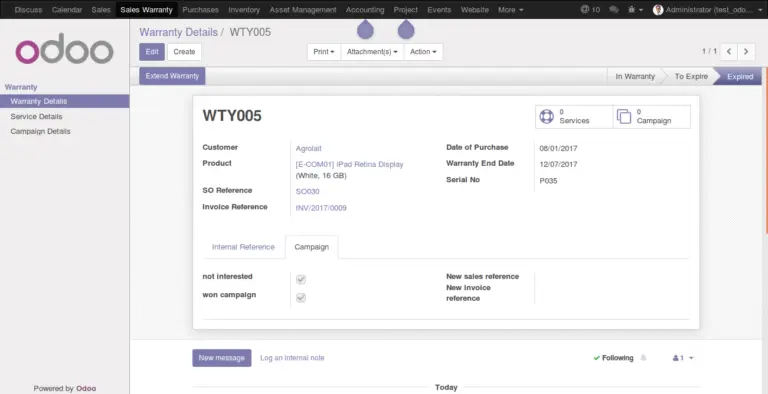
If the salesman wins the campaign, he can use the button “Won Campaign”. This will again flag the record and introduce new fields in the form, to log the campaign/sales details. He can leave the sales reference as text. If the salesman has already issued a sale order or invoice, that information also can be marked here.
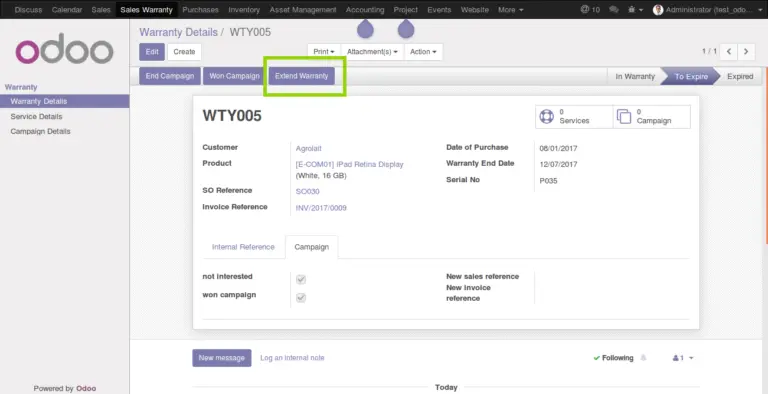
Based on the sales offer, the manager can extend the warranty of the product using the “Extend Warranty” button. The action will update the “Warranty End” . It also changes the stage of the record, back to “In Warranty”.
Service Records
Service records can be created directly from the service details menu or it can be created using the “Services” link in the warranty record. The link displays all the existing service records under the warranty. The record captures warranty details and product information along with the received date. The executive who receives the product and creates the service record fills up complaint information.
The newly created service record will be in “Registered” state by default. In the registered state two buttons shall be available. “Process” and “Replace Product”.
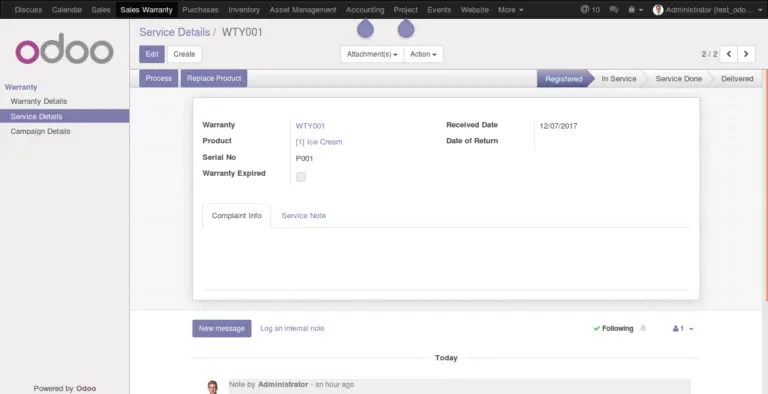
The process button would move the product for service and the state of the record will become “In Service”.
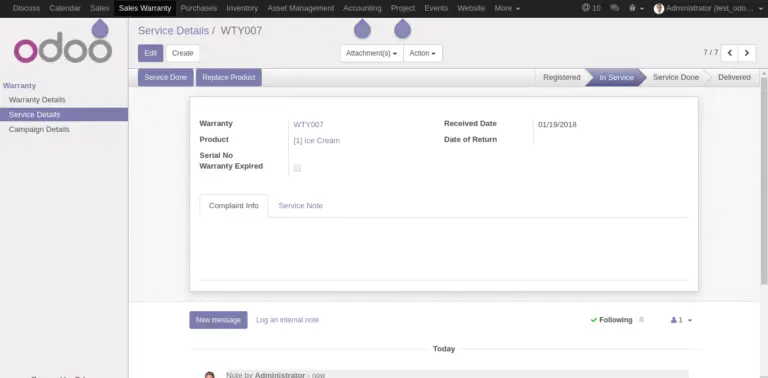
From “In Service” the record moves to “Service Done” state using the button “Service Done” and later to “Delivered” state using “Deliver Product” button.
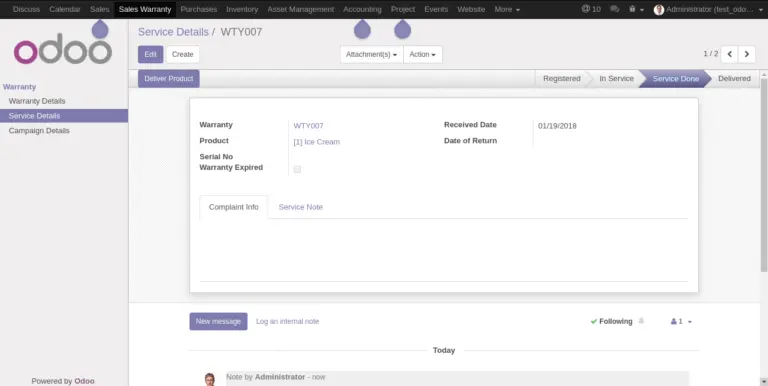
The “Replace Product” in the service page is used to issue a replace for the product if it can’t be repaired.
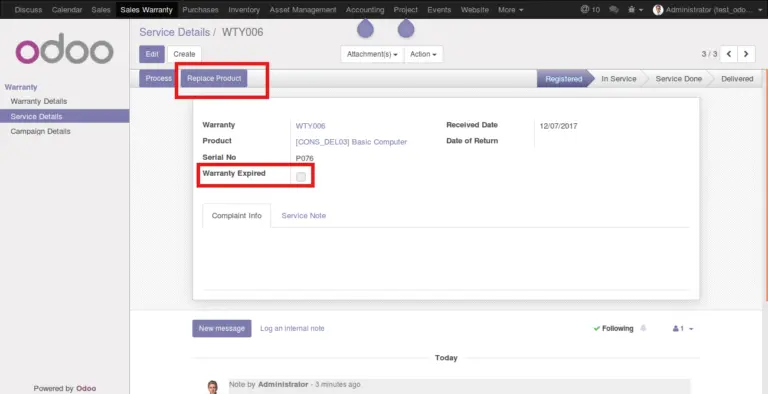
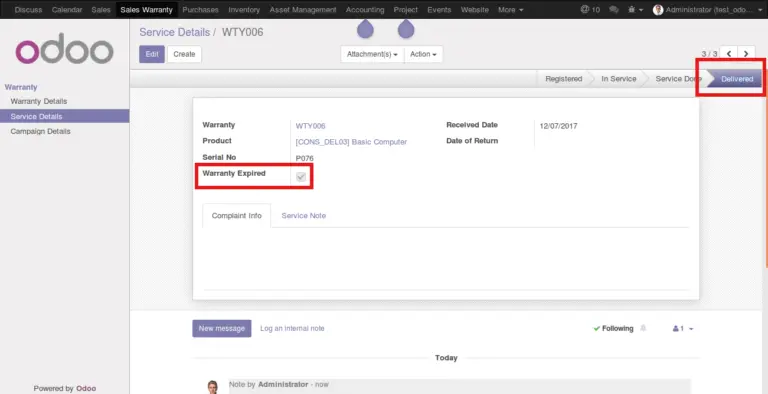
The replace action will close the service record and mark it “Delivered”. It also sets the status of the warranty record as expired. The executive can issue a new warranty record related to the product.
Campaign Records
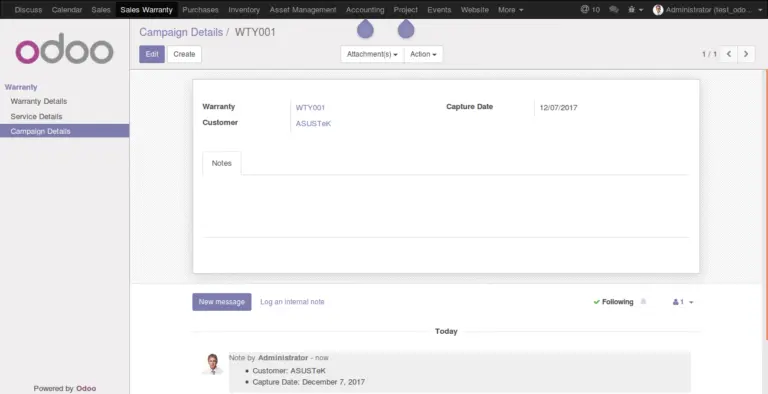
Campaign Records can be accessed directly through the menu “Campaign Details” or using the link “Campaigns” in the warranty record. These records keep history of sale attempts made by sales persons to extend the warranty of the product. The information can be used as input for improving the sales strategies as well as quality of services.
Please refer link to the module in Odoo Apps.
https://apps.odoo.com/apps/modules/11.0/bt_sales_warranty/
Official Member Of:







All Contents © Copyright. BroadTech IT Solutions 2026. All Rights Reserved.